
Script Factory
Interface Layout
Learn about the editor interface structure and functions of each area
Overall Layout
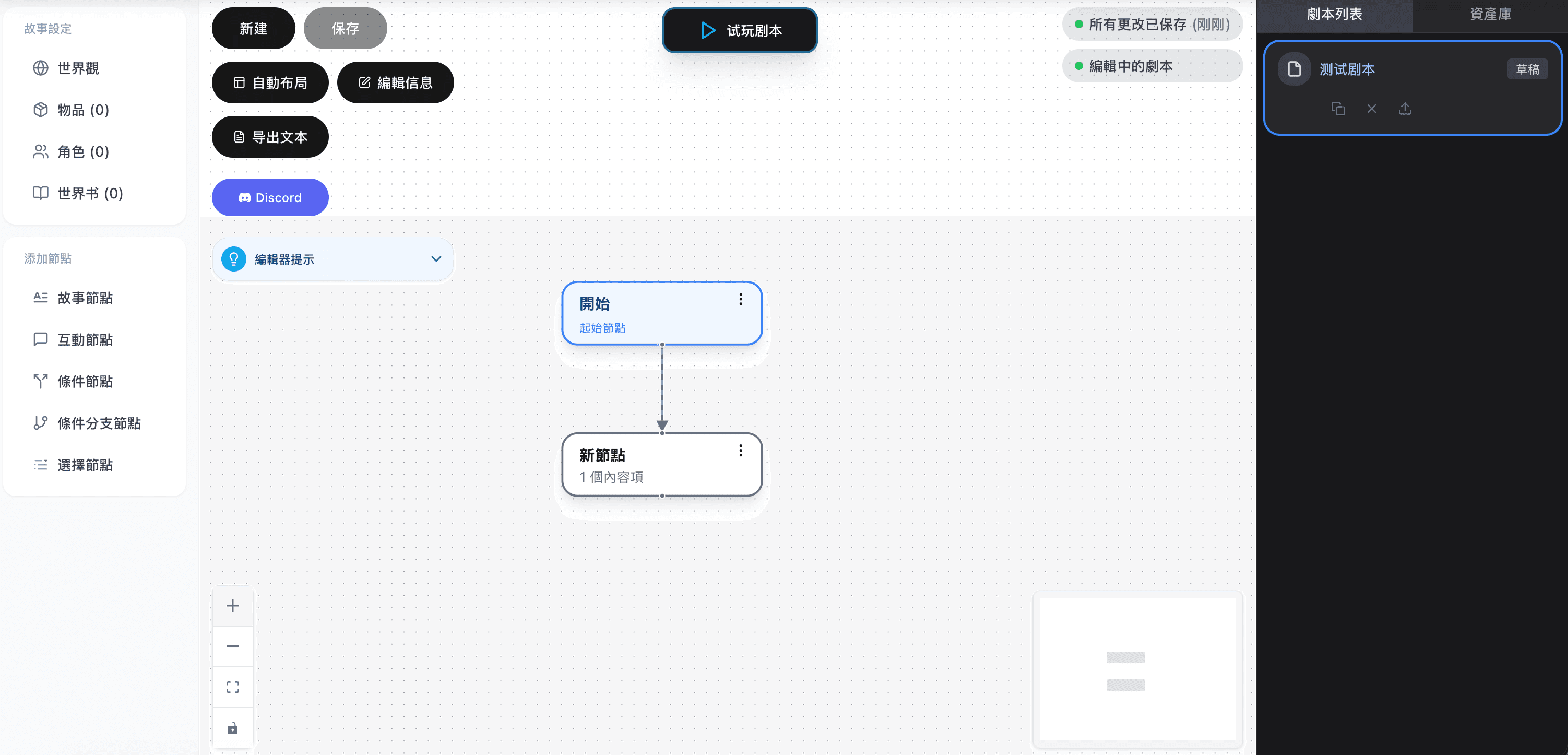
| Area | Main Function |
|---|---|
| Left Sidebar | World settings, add nodes |
| Central Canvas | Node editing, flow visualization |
| Right Sidebar | Script list, asset library |
| Top Toolbar | New, save, layout operations |
| Status Panel | Save status, script status |
Left Sidebar
The left sidebar is divided into two functional sections:
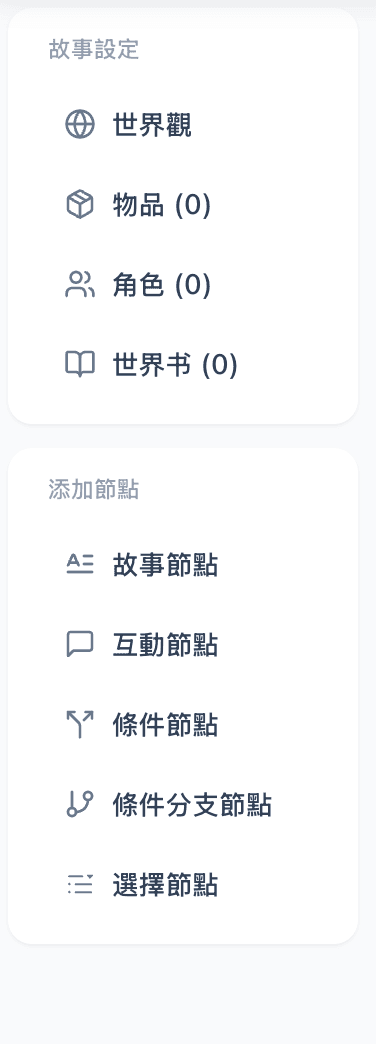
World Settings Section
Manage the basic settings of your script:
| Button | Function |
|---|---|
| Worldview | Edit story background settings (XML) |
| Item Management | Manage items in the script |
| Character Management | Create and edit characters |
| Lorebook | Add terminology and setting entries |
Add Node Section
Click buttons to add corresponding node types to the canvas center:
| Button | Node Type | Description |
|---|---|---|
| Story Node | Story | Display text and images |
| Interaction Node | Interaction | Character dialogue |
| Condition Node | Condition | Single condition check |
| Conditional Branch | Conditional Branch | Multi-condition logic |
| Choice Node | Choice | Player options |
Central Canvas
The canvas is the core area of the editor for visually editing story flow.
Canvas Elements
| Element | Description |
|---|---|
| Grid Background | Helps align nodes |
| Nodes | Various parts of the story |
| Connections | Flow relationships between nodes |
| Minimap | Bottom right, shows overall layout |
| Control Bar | Bottom left, zoom and fit view |
Canvas Operations
| Operation | Method |
|---|---|
| Pan canvas | Drag empty area |
| Zoom canvas | Scroll wheel |
| Select node | Click node |
| Multi-select | Hold Shift + click |
| Move node | Drag node |
Right Sidebar
The right sidebar has multiple tabs:
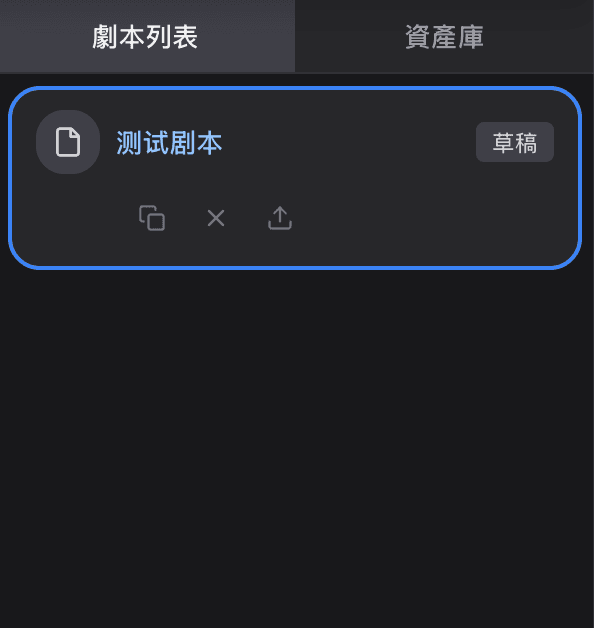
Script List
Displays all scripts you've created:
- Script Cards: Show title, status, update time
- Load Script: Click card to load into editor
- Duplicate Script: Create a script copy
- Status Indicators: Draft / Under Review / Published
Asset Library
Manage your uploaded image resources:
- Upload Assets: Drag and drop or click to upload
- Preview Assets: View uploaded images
- Copy Link: Get asset URL for use in nodes
Top Toolbar
First Row Buttons
| Button | Function |
|---|---|
| New | Create a new script |
| Save | Save current script |
| Create Copy | Create update patch for published script (only shown for published scripts) |
Second Row Buttons
| Button | Function |
|---|---|
| Auto Layout | Automatically arrange node positions |
| Edit Info | Modify script title, description, tags, price |
Third Row Buttons
| Button | Function |
|---|---|
| Export Text | Export script content as text file for batch updates (e.g., translation) |
Other
- Discord Button: Join community for help
- Tips Panel: Display quick operation tips
Preview Button
The "Preview Script" button at the top center of the canvas:
Click to open preview mode in a new tab, experiencing the script from the player's perspective.
Status Panel
The top right of the canvas displays the current script status:
| Display Content | Description |
|---|---|
| Save Status | Unsaved changes / Saving / Saved |
| Last Saved | Time of last save |
| Script Status | Draft / Under Review / Published |
Next Steps
- World Settings - Learn how to set up worldview, characters, and items
- Node Types - Learn how to use various nodes