
Publishing
Release a version for players: the listing, versions, who can see it.
Publishing releases the draft as a version players can play. You can keep editing the draft; players see only what you publish.
The publish dialog
Click Publish in the top bar.
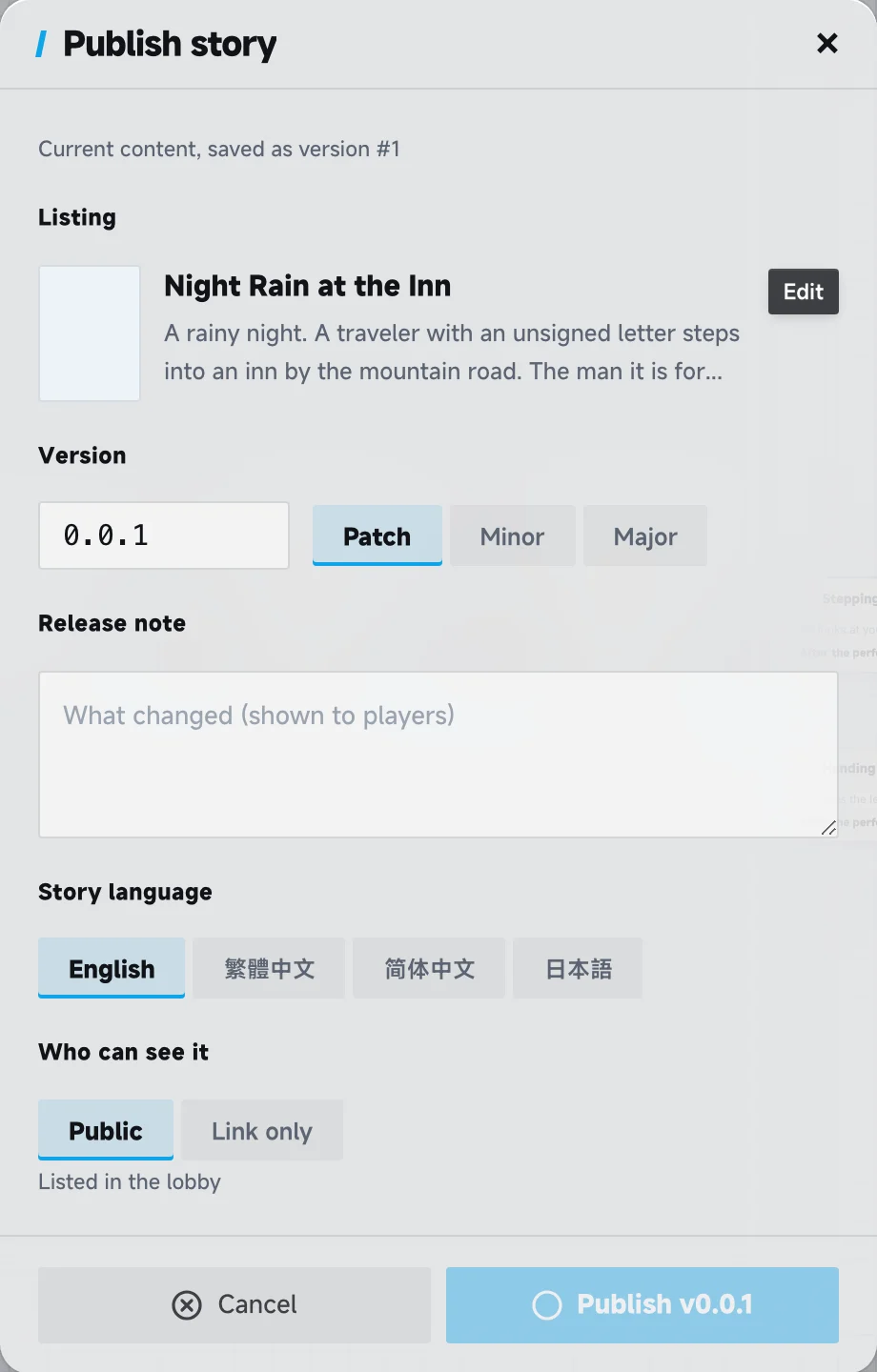
- Listing: the cover, title and introduction players see in the lobby and on the story's page. Edit opens Story settings, where you fill them in.
- Version: a number such as 0.1.0. Pick Patch, Minor or Major for how big the change is. Each version must be higher than the last.
- Release note: what changed. Players read it on the story's page. Required.
- Story language: the language you wrote the story in. Translations made with Translate in the top bar go out with the version once they are nearly complete.
- Who can see it: Public lists the story in the lobby. Link only keeps it out of the lobby; anyone with the link can play. Link only suits sharing a first version with a few people.
While the story still has problems to fix before publishing, such as an exit that is Not decided yet, the dialog does not let you publish.
Plotti's review
The first time you publish a story, Plotti reads it first, against the platform's content rules. While she reads, the dialog shows Plotti is reviewing…. Once she approves, the story is published. If she does not, you see why, and Back to editing. Later versions are not reviewed.
After publishing
The dialog shows the Story page (for a public story) or the Invite link (for link only), with Copy link and Open. The link has no language in it: if you have translated the story, each player sees it in their own language.
To release changes, keep editing and publish again. Players who already started keep their saves.
Take down, under the link, removes the story from the lobby and stops the link working: no new games can start, but players who already started can finish. List again brings it back, public or link only.
Versions
Versions in the top bar keeps the versions of your draft. A dot beside it means there are changes since the last version. Save version saves the draft as it is now as a version, with an optional name. You can see what each version changed, and Restore this version; if you have unsaved changes, it asks whether to save them first. Publishing also saves a version.