
The stage and portraits
Portraits and looks, backgrounds, where characters stand, gestures, light and mood.
The stage is the picture behind the words: a background, the characters standing in front of it, and the effects over both. A character on stage is drawn with one of their portraits, and switches between portraits as they speak: a smile on this line, a frown on the next.
The examples on this page continue the inn from Your first story.
Portraits
Each portrait of a character is a Look: a name and a picture. Open the character under Character, click Add a look next to their picture, type a name, then pick a picture: one from the shared portrait sets in the list, or From library for a picture of your own.
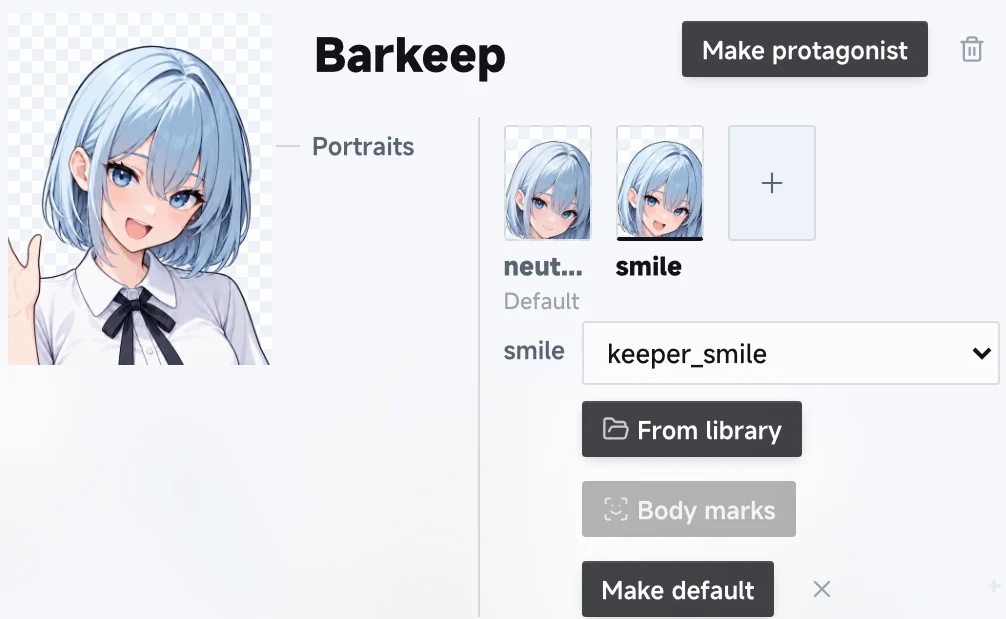
- Name each look for the expression itself: neutral, smile, angry, crying. These are the names Plotti reads when she picks a face for a line.
- The first look is the Default, the one the character uses when nothing else is set. Make default changes it.
- Keep a character's pictures the same size and pose, so that only the face changes when the look changes.
- When you use a picture of your own, Plotti marks where the face, chin and waist are, so the stage can frame the character in a close-up or at half body. If the framing is off, open Body marks and choose Estimate again or Mark by hand.
Looks, further down the character's page, is a description in words, which Plotti reads when she writes. It does not change the picture.
Faces in lines
When the speaker of a Line has looks, the line has a Look: the character's face while they say it. Keep current leaves it unchanged.
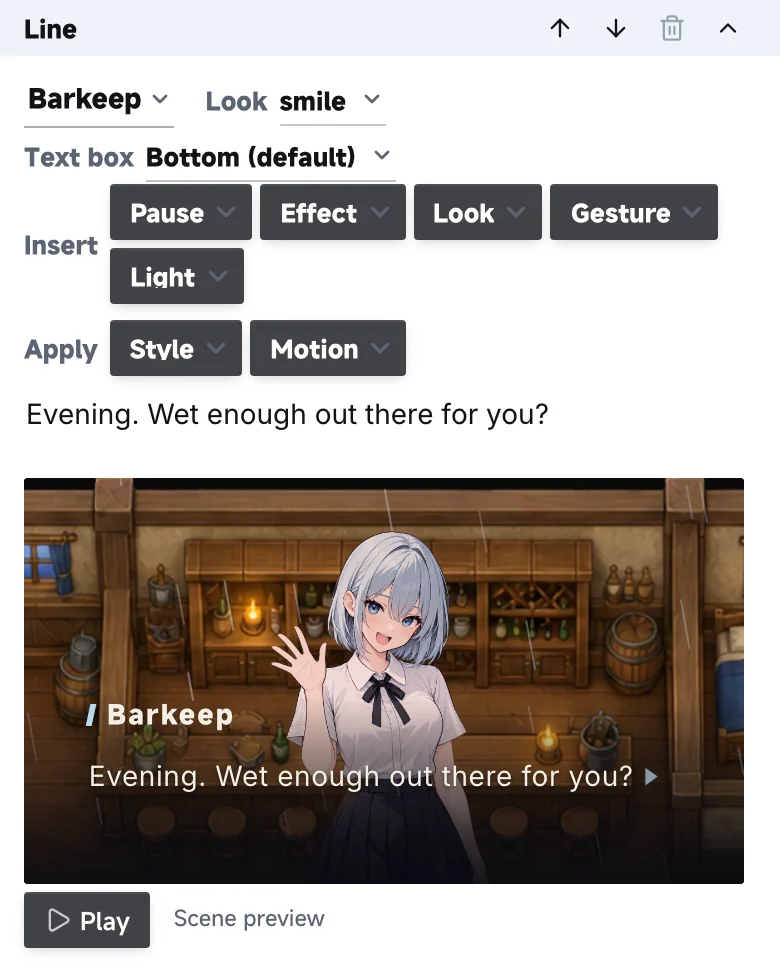
To change the face halfway through a line, put the cursor where it should change and pick a look from Insert → Look. Gesture and Light in the same row work the same way.
A face stays until something changes it, in this node or in a later one.
The stage carries over
The whole stage works this way. A stage step changes only what it names, and everything else stays as it was; when the story moves to another node, the stage stays the same too. If the barkeep comes on stage in the opening, she is still on stage in the next scene, until a step takes her off.
So a stage step reads as one change: "the background becomes the tavern at night, it starts to rain, the barkeep comes on". The summary line on the form says the same thing.
A stage step
Click Insert step and choose Stage. The form shows only the parts this step changes. Add the others with the + buttons below.
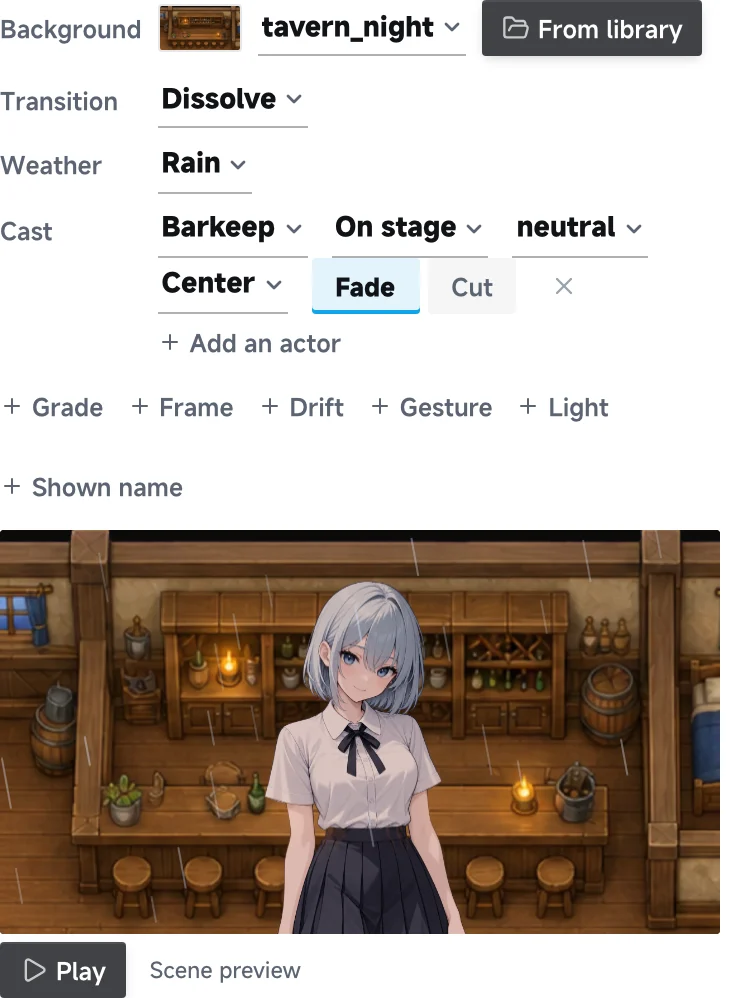
The Scene preview below the form shows the stage the player sees at this moment. Play plays the change, from the stage before this step to the stage after it.
Background
Pick a background from the list, or click From library to use a picture of your own. No background removes the background.
Transition sets how the new background appears: Dissolve (the default), Cut, Through black, Through white, Wipe or Blur.
Characters
Each row under Cast is one character:
- On stage brings them on, or gives a character already on stage a new look or place. Leaves takes them off.
- Look: which of their looks they use. Keep leaves it unchanged.
- The place: Left, Center or Right.
- Fade or Cut: appear and disappear slowly, or at once.
For a character without looks, you pick a picture here instead (Figure). Give the character looks first: once a stage step puts a single picture on them, their lines cannot change faces until you set that step's Figure back to Keep and pick a look.
Add an actor adds another row. The ✕ at the end of a row removes the row from the step (it does not take the character off stage; Leaves does that).
Effects
Add the rest with the + buttons. Each one stays until a later step changes it.
- Grade: the color tone of the whole picture. Noir, Blood, Cold, Dream, Memory, Sepia, Night, Tape. None (clear) returns to normal.
- Weather: Rain, Snow, Petals, Fog, Storm, Embers, Dust motes. None (clear) stops it.
- Frame: Letterbox or Vignette.
- Drift: a slow camera move. Push in, Pan left, Pan right. None (stop) holds the camera still.
- Gesture: how a character moves. Nod, Shake head, Hop and Flinch happen once. Tremble, Freeze (not even breathing), Step close and Collapse hold until the next gesture. Breathe is how a character normally stands, and it also ends a held gesture.
- Light: how a character is drawn. Silhouette, Glow, See-through, Flicker, Red light and Blue light hold until changed. Plain returns to normal. The number beside the word sets the strength: a Silhouette at 0.5 is half dark, and at 1 (the default) fully black. Leave it empty for the default.
- Shown name: the character's name as the player sees it, such as "Barkeep" before the barkeep gives her name. Own name goes back to the character's own name.
A row left on Keep changes nothing, and is removed when you close the step.
For a step that changes only one of these, the Insert step menu has Gesture, and Advanced has Light and Shown name. Put a Gesture step between two lines, and the barkeep nods first, then answers.
The stage and Plotti
When Plotti writes a reply, she can pick a look for each line from the speaker's looks, by name. She can also bring characters on and off stage and make them move as she writes. The editor cannot know in advance what she will write, so after an Instruction step the scene preview shows the stage left by your own steps.