
The editor
The top bar, the left rail, the canvas and the node form.
Open the editor from V2 Editor in the navigation bar. It has four parts: the top bar, the left rail, the canvas and the node form.
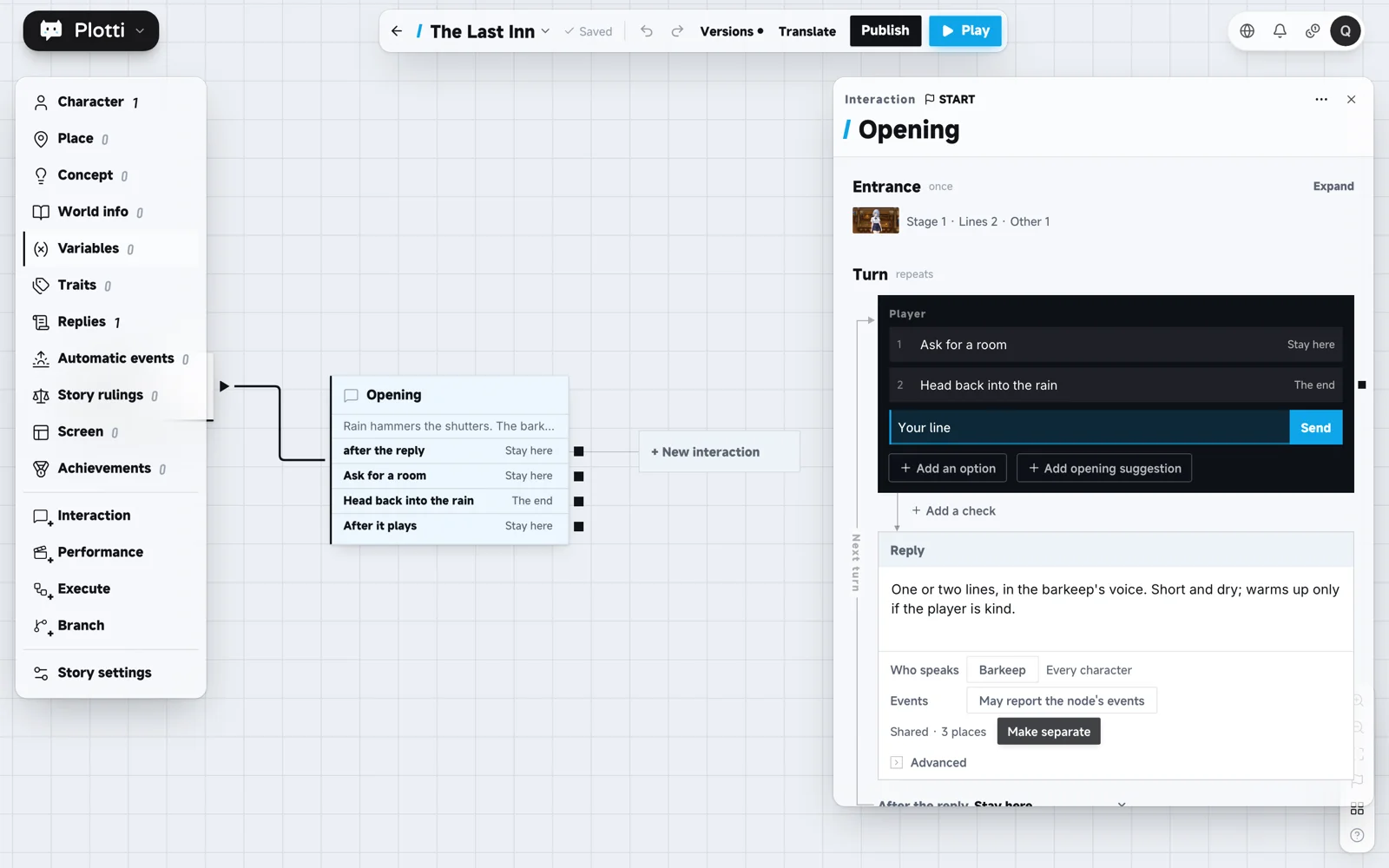
The top bar
- Back to drafts: your list of stories.
- The title: click it to open Story settings. You can also import or export the story's source there.
- Saved: the editor saves as you work.
- Undo and Redo. ⌘Z (Ctrl+Z) also works outside text fields.
- Versions: the saved versions of the story. See Publishing.
- Translate: translations of the story.
- Publish and Play. See Publishing and Play test.
The red number beside them opens Problems.
The left rail
Each icon opens a panel. Move the pointer over the rail to see their names.
- Character, Place, Concept, World info: what Plotti knows about your world. See Characters and the world book.
- Variables: the values the story keeps. See Variables.
- Traits: fields and buttons that several characters share.
- Replies: what Plotti writes when she answers the player. See Replies.
- Automatic events: rules that fire on their own. See Events.
- Story rulings: questions Plotti decides during play.
- Screen: what the player sees around the story. See The screen.
- Achievements: see Achievements.
- + Interaction, + Performance, + Execute, + Branch: add a node. See Nodes and flows.
- Story settings: the listing, the opening node, the protagonist.
A red dot on an icon means that panel has a problem.
The canvas
Each card is a node, and the wires are its exits. Drag cards to arrange them. The tools in the bottom right corner:
- Zoom in, Zoom out;
- Fit all: brings every card into view;
- Back to the start (Home): brings the START card back into view;
- Tidy up: lays out every card again;
- How to connect: a short guide to connecting exits.
The node form
Click a card, and its form opens on the right. The top of the form shows the node's kind and name. The opening node has ⚑ START, and the ⋯ menu has Play test from here, Make opening, Duplicate node and Delete node.
Plotti
Plotti sits in a corner of the screen. Click her and describe in words what you want changed, or ask her to draw a cover or portraits. See Pictures and edits with Plotti.